


Boomerang’s Tickets plugin enables structured support ticket creation within your server, complete with web-based transcripts, custom branding, and support for multiple panels. It is a comprehensive system comparable to modern ticketing solutions, designed to improve organisation and communication between staff and members. Careful review of the Tickets documentation is strongly recommended to ensure a smooth and effective setup process.
Tickets ConfigurationCopy link to section
- Navigate to the Boomerang dashboard and locate the Tickets plugin on the overview page. Click “Enable” to activate it.
- Once enabled, open the plugin’s settings by selecting “Configure” from the overview page or by navigating directly to the Tickets page within the dashboard.
| Customisation | Description |
|---|---|
| Subjects | Predefined categories or topics that users select from when opening a ticket. |
| Panels | Customisable embeds or messages that users interact with to open support tickets. |
Ticket SubjectsCopy link to section
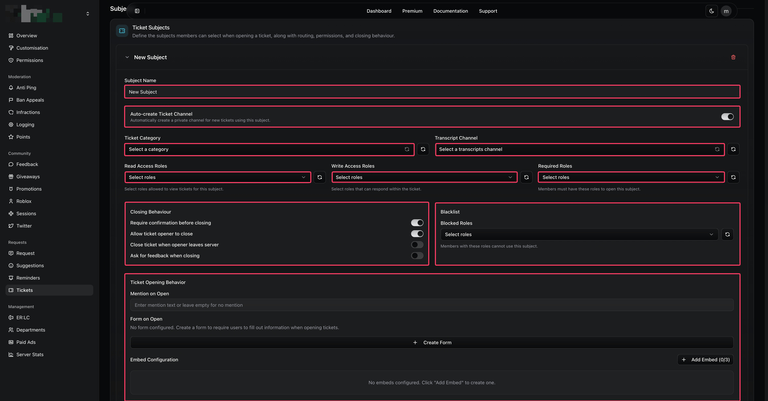
Subjects are predefined categories that users select when opening a ticket. These help staff quickly understand the nature of the request and ensure tickets are directed to the appropriate team or department.
To create a subject, select "Add Subject" and provide a clear, descriptive name.
| Customisation | Description |
|---|---|
| Subject Name | A concise and recognisable title for the subject, for instance “General”, “Report”, or “Community”. |
| Auto-create Ticket Channel | Automatically creates a private channel for new tickets using this subject. Disabling this option will prevent tickets from being created. |
| Ticket Category | The category in which new ticket channels will be created. |
| Transcript Channel | The channel to which ticket transcripts for this subject will be sent. |
| Read Access Roles | The roles permitted to view and access tickets associated with this subject. |
| Write Access Roles | The roles permitted to respond to and participate in tickets for this subject. |
| Required Roles | Members must hold these roles to open a ticket under this subject. For subjects intended to be accessible to all members, assign the relevant member role(s). |
| Require Confirmation Before Closing | Require moderators to confirm their intent before closing tickets associated with this subject. |
| Allow Ticket Opener To Close | Allow the user who opened the ticket to close it themselves. |
| Prompt Members to Leave Transcripts | A subject-level setting that controls whether tickets are automatically closed when the user leaves the guild. |
| Ask for Feedback When Closing | When enabled, Boomerang prompts the ticket creator to provide feedback after the ticket is closed. |
| Blacklist/Blocked Roles | Members holding any of these roles are restricted from opening tickets under this subject. |
| Mention On Open | The specified role(s) or mentions will be notified when a ticket is opened. This may include @here or @everyone, as well as individual users or roles using their respective ID formats. |
Form on OpenCopy link to section
Boomerang allows you to configure a form that users must complete when opening a ticket, with forms configurable on a per-subject basis. To create a form, select the "Create Form" button.
| Customisation | Description |
|---|---|
| Form Title | The title displayed on the form. |
| Question Title | The title displayed for the question. |
| Placeholder Text | Placeholder text displayed in grey within the input field until the user begins typing. |
| Input Style | Controls the size of the input field (Short or Paragraph style). |
| Required Field | Determines whether the field is required or optional. |
| Minimum/Maximum Length | Sets the minimum and maximum number of characters permitted for the form response. |
Ticket PanelsCopy link to section
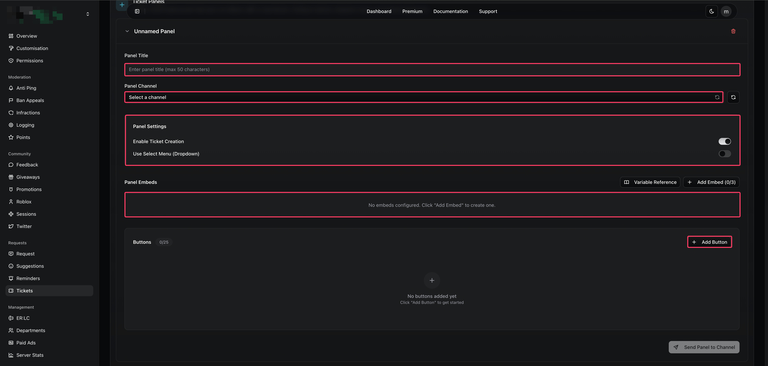
Customisable embeds or messages that users interact with to initiate and open support tickets.
| Customisation | Description |
|---|---|
| Panel Title | A short, easily recognisable name for the panel. |
| Panel Channel | The channel in which the panel will be posted. |
| Enable Ticket Creation | Controls whether tickets can be created from this panel. |
| Use Select Menu | Use a select menu (dropdown) to allow users to choose a subject when opening a ticket. |
| Button Label | The text displayed on the button. |
| Button Emoji | The emoji displayed alongside the button text. |
| Button Style | The visual style of the button (Primary, Secondary, Danger, or Success). |
| Button Subject | The subject that will be opened when the button is selected. |
Tickets CommandsCopy link to section
| Command | Description |
|---|---|
/ticket add | Adds a user to the ticket in which the command is executed. |
/ticket blacklist | Prevents a user from opening or using tickets under a specific subject by adding them to the subject blacklist. |
/ticket close | Closes the ticket in which the command is executed. |
/ticket feedback | Displays ticket feedback statistics. |
/ticket manage | View and manage ticket transcripts along with related ticket information. |
/ticket remove | Removes a user from the ticket in which the command is executed. |
/ticket request | Requests the closure of an active ticket. |